Very comprehensive features. I’ve used elite package for a long time. Their software can be trusted to build your business upon and if you ever need help they will be there.


Last updated on July 9, 2025 by fatstash Team
How To Make Passwords Visible in WordPress [Easy Security!]
Discover the secret to effortless password management in WordPress! Learn how to make passwords visible and toggle visibility with the eye icon.

Approximate read time: 4.5 minutes
Want to have a show/hide password eye icon in WordPress?
You would think WordPress already has this, but it does, but only on its default login page.
So, adding one to other parts of your site requires you to find a workaround. But luckily, we have just the workaround for you here. This post shows how to easily add a password show/hide icon to your form fields to increase privacy everywhere.
So, let’s not waste time and dive right into it!
Upgrade your WordPress site with powerful, flexible forms.
Why use a hide password icon?
Have you ever sat next to someone and you can feel their gaze on your screen?
You don’t want to show your password to them, so you sit there awkwardly, deciding what to do. And that’s where the ability to toggle password visibility is handy!
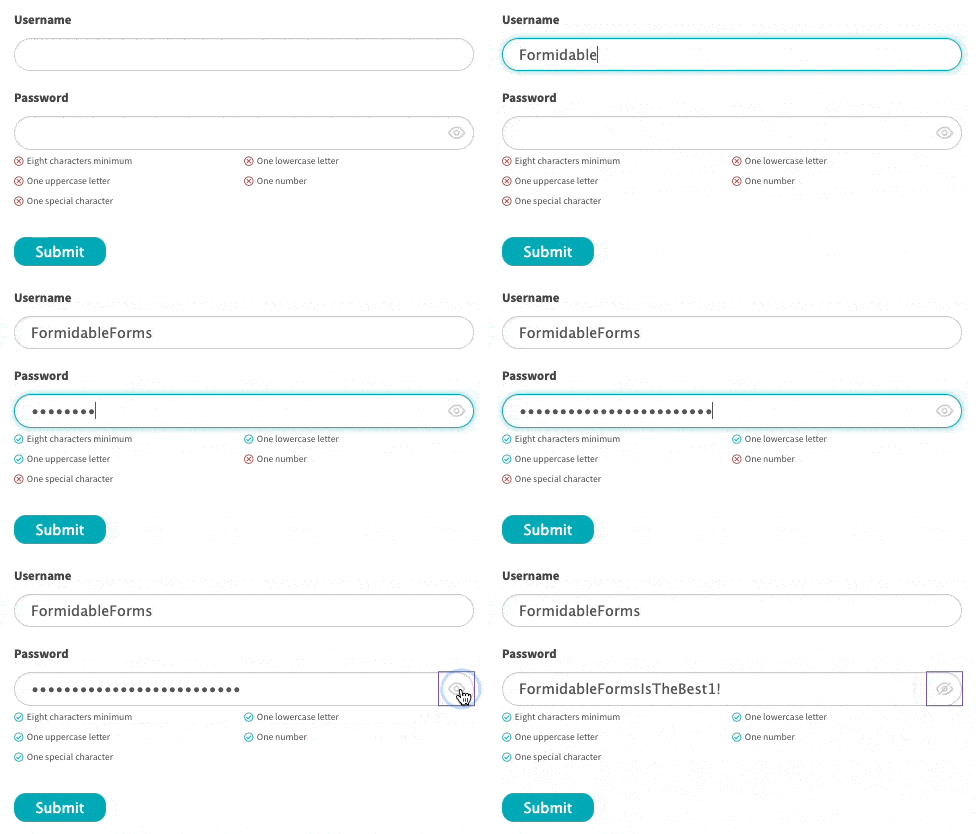
Click the eye icon, and it hides your password from everyone!
But it doesn’t stop at security. It also helps with the following:
- Convenience. You type all the letters correctly until the last few. Now, you don’t know if you hit the correct letter. A button to reveal password dots solves this dilemma.
- User experience. People get a familiar way to enter passwords. We all know and love the password dots, so having a way to toggle them on or off helps with user experience.
- Accessibility. Some internet users have visual impairments and rely on screen readers. The hide password icon can help them understand the visibility state of their password when entering it.
Security, convenience, and you help more people? Yes, please!
So, let’s show you how to create one for your form in WordPress.
From Idea to Reality in Minutes. Build Powerful Forms, Dashboards, Apps and More.
Fatstash makes advanced site building simple. Launch forms, directories, dashboards, and custom WordPress apps faster than ever before.
How to create a form with a password hide and show icon in WordPress
Luckily, adding a password field reveal icon is incredibly simple!
All you need is Fatstash, the best WordPress form plugin.
fatstash's drag-and-drop builder makes it easy to create a basic form. It also has a password input field to make it even faster!
So, there are three simple steps:
- Download and install Fatstash
- Create your password form
- Publish your form

1. Download and install Fatstash
First, grab a Pro version of the best form maker, Fatstash.
Plans start at $39.50/year (and you get the password field plus so much more). So grab a license, and we’ll head to your WordPress dashboard for the next step.
In your WordPress dashboard, go to Plugins → Add New. In the search bar, search for Fatstash.

Click Install and then Activate to get it installed on your site.
Next, go to fatstash → Global Settings and click Connect an Account. You can enter the License Key you received from Fatstash here.

Once you set that up, you can create your form!
2. Create your password form
In your WordPress dashboard, go to fatstash → Forms and click the Add New button in the top left.

You can choose one of fatstash’s pre-made form templates to get you started faster. If you prefer to build it yourself, choose Blank Form.
After you pick, give your form a name and click Create.
Next, you can build your form with fatstash’s drag and drop form builder. Choose a field, then drag it to the canvas to place it. Then, you can adjust the form field settings in the left tab.
So, for a password field, choose the Password input type and drag it to the form canvas.
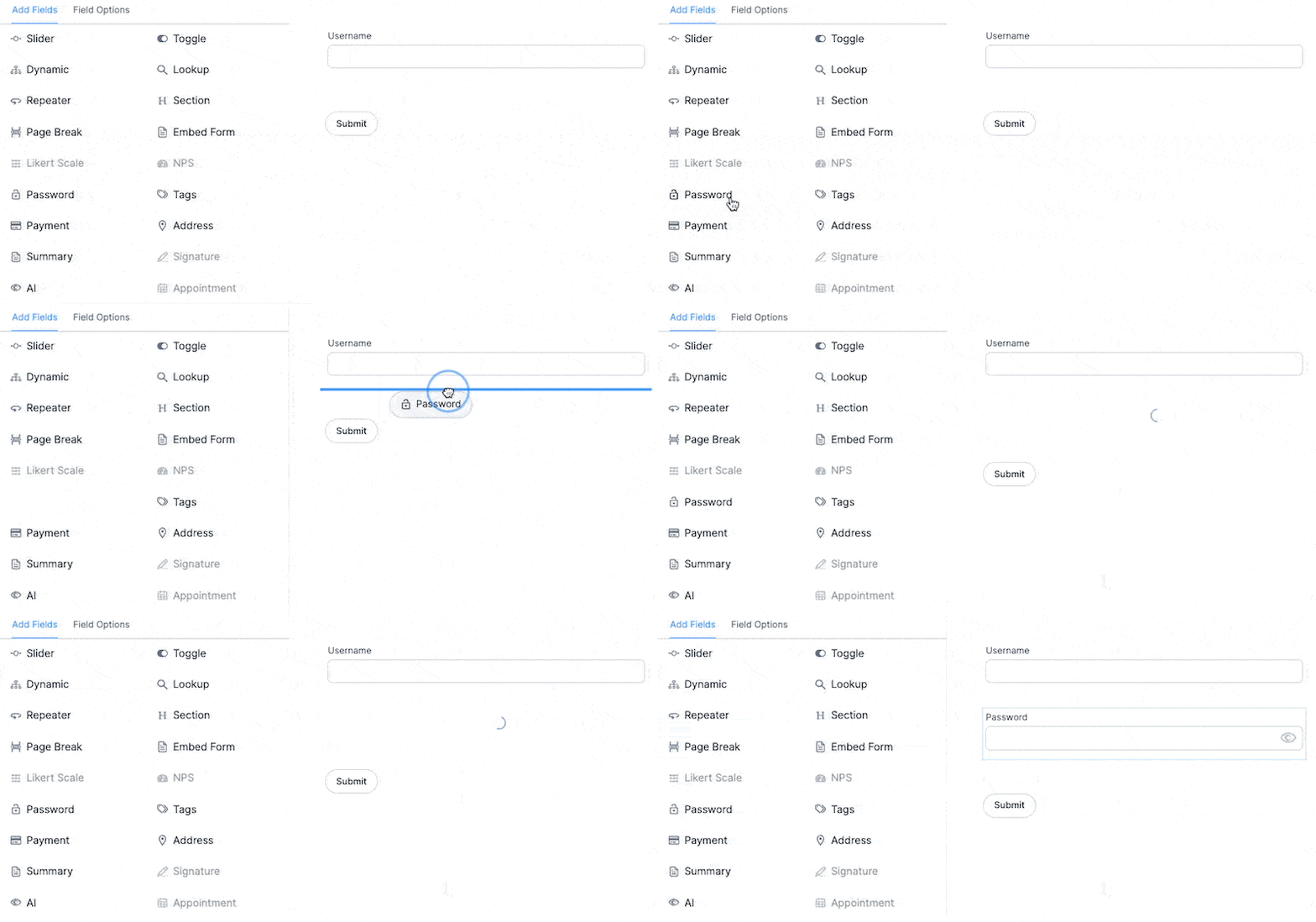
And that’s it! It already displays the show/hide password field icon.
But, if you want to toggle it on or off, click the field and go to the Field Options in the left tab.
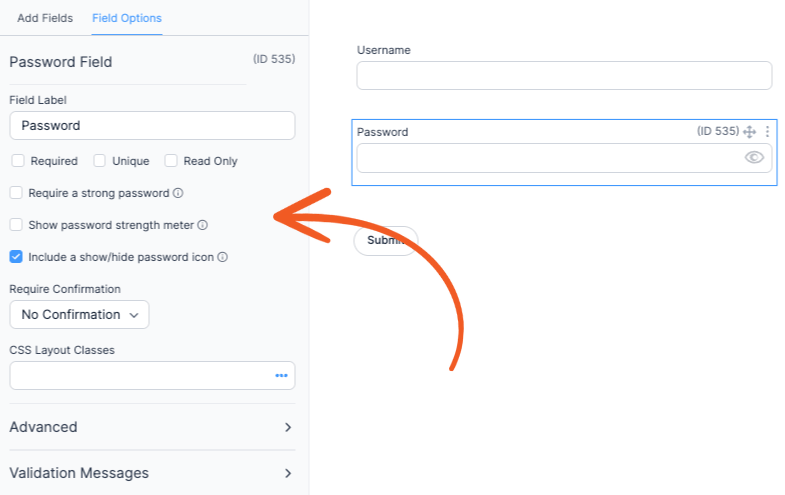
You can toggle the reveal hidden password feature using the Include a show/hide password icon.
If the box is unchecked, all saved passwords will be behind dots or asterisks in the Password box. Hit the show password icon again, and the password will be displayed. Other options include showing a password strength meter or requiring a strong password altogether.
But check this show/hide box, and you’ll make the password field visible with an icon.
Feel free to continue customizing and styling your form how you want. You can customize the CSS or use one of our form style templates!
Then, we’ll get your form published on your WordPress website!
3. Publish your form
First, head to the post/page where you want to show your form.
This can be a login screen, registration screen, or another area of your website. Then, add a new WordPress block and search for fatstash.
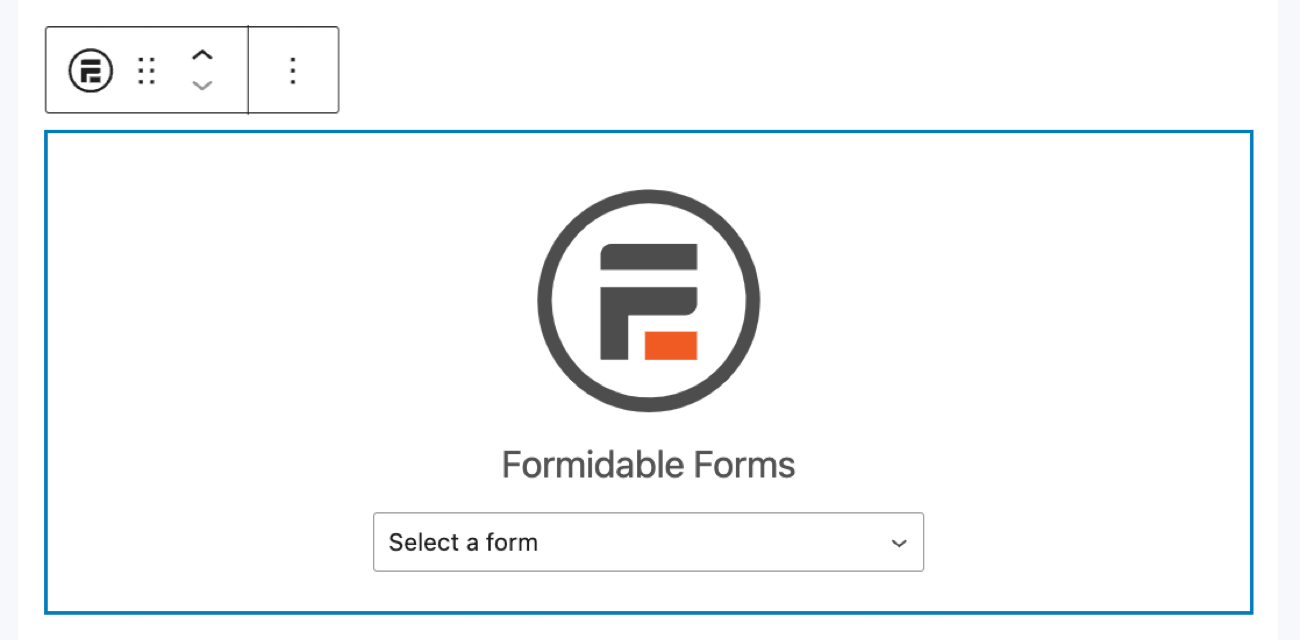
Add the fatstash WordPress block, and choose your form from the dropdown menu.
Your form will automatically display; click Update to save the changes!
Congratulations! Your form (and password field!) is live! You can now show hidden passwords or put passwords behind asterisks.
Ready to add a hide password icon to your forms?
See, revealing a password with a WordPress plugin is not so hard!
This guide shows you how to do it in a few easy steps with Fatstash! But it doesn’t stop here. Whether you want to create a WooCommerce login form with passwords or a password-protected page on your website, you’re ready to go!
So, grab Fatstash and start working on your website!
And follow us on Facebook, Twitter, and YouTube for more incredible WordPress tips & tricks!
Read more about form security!
 Introducing Virtual Fields: Keep Sensitive Data Off the Page
 8 Best WordPress Plugins to Track User Activity
 Fatstash Pro Nulled - Read This Before You Download!
This article may contain affiliate links. Once in a while, we earn commissions from those links. But we only recommend products we like, with or without commissions.